Modern Home Assistant Dashboard
Overloading Home Assistant to make it look and feel like a premium home automation platform.
Buying and setting up the Pi
I’d been thinking about buying a Raspberry Pi for a long time, partly to fiddle around with it and partly to have an always-on computer in the house. I finally did, and the first thing I set up on it was Home Assistant.
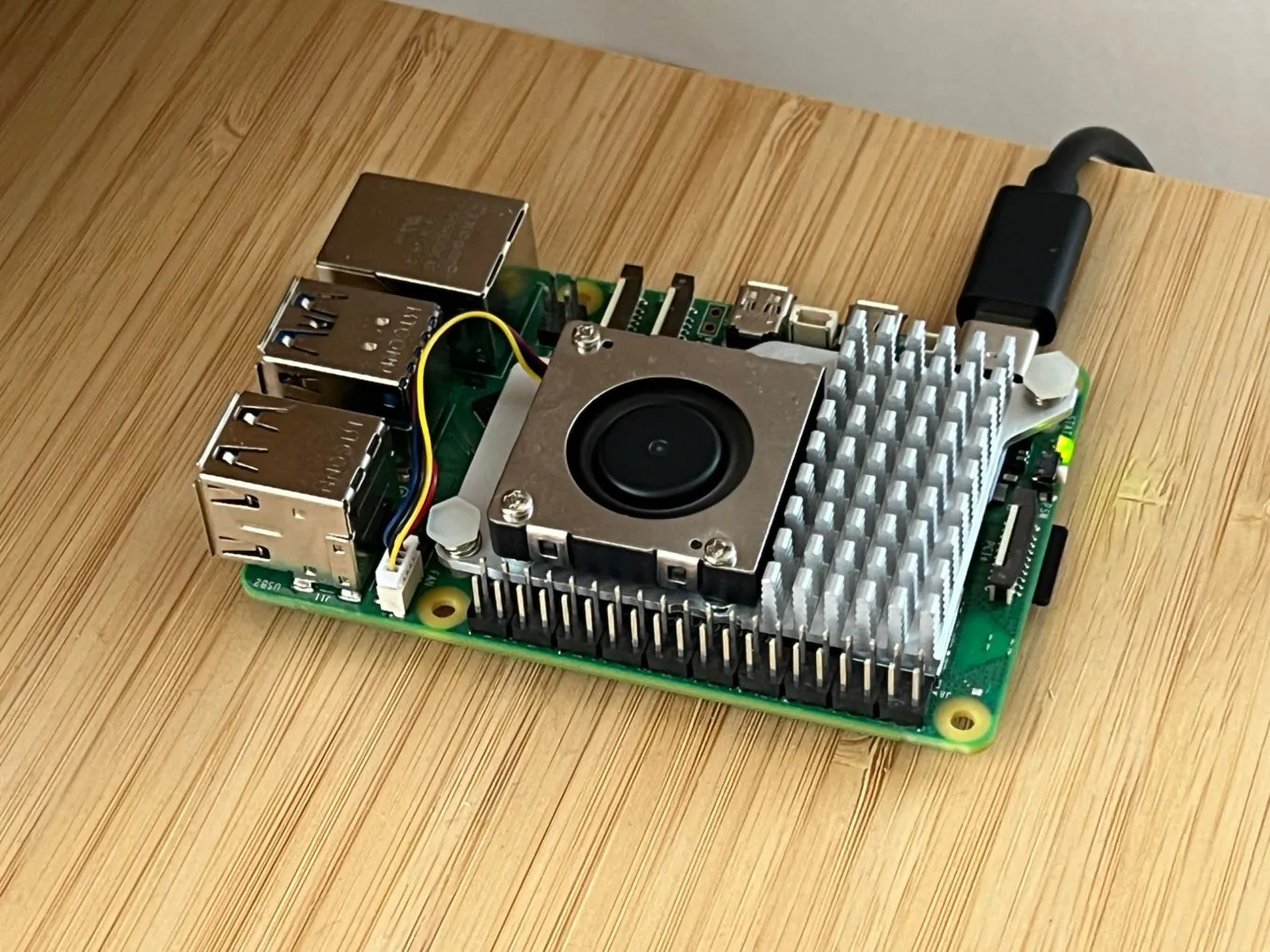
A home hub was the other option, and for me it wasn’t worth it. A HomePod costs around €200, while a Raspberry Pi costs less and can run a bunch of other things at the same time.
So I bought one and flashed it with Raspberry Pi OS Lite, the version without a desktop, with SSH turned on so I could manage it from my laptop. You can find the instructions here.
The devices I already had
I didn’t have a lot of smart stuff around the house, but I had enough to start with:
 A Philips Hue Bridge with a couple of Hue bulbs.
 An IKEA colour bulb, paired to the same bridge. Getting an IKEA bulb into Hue takes a little hacking: you reset the bulb by flicking the switch six times while the Hue app searches for lights. Here’s a good walkthrough.
 A Samsung smart TV.
 Three Meross Matter smart plugs. I’d bought them without really knowing what to do with them. In the end, one went on the fridge so I can see how much power it uses, and the other two on two living room lights that weren’t smart.
 A Dreame D10 Plus robot vacuum, which at some point I decided to call Tim.
 My iPhone with the Home Assistant app, so the house knows when I’m home.
A custom dashboard with Home Assistant and React
Home Assistant comes with a pretty decent default overview page, but it’s nowhere close to what I like seeing and interacting with.
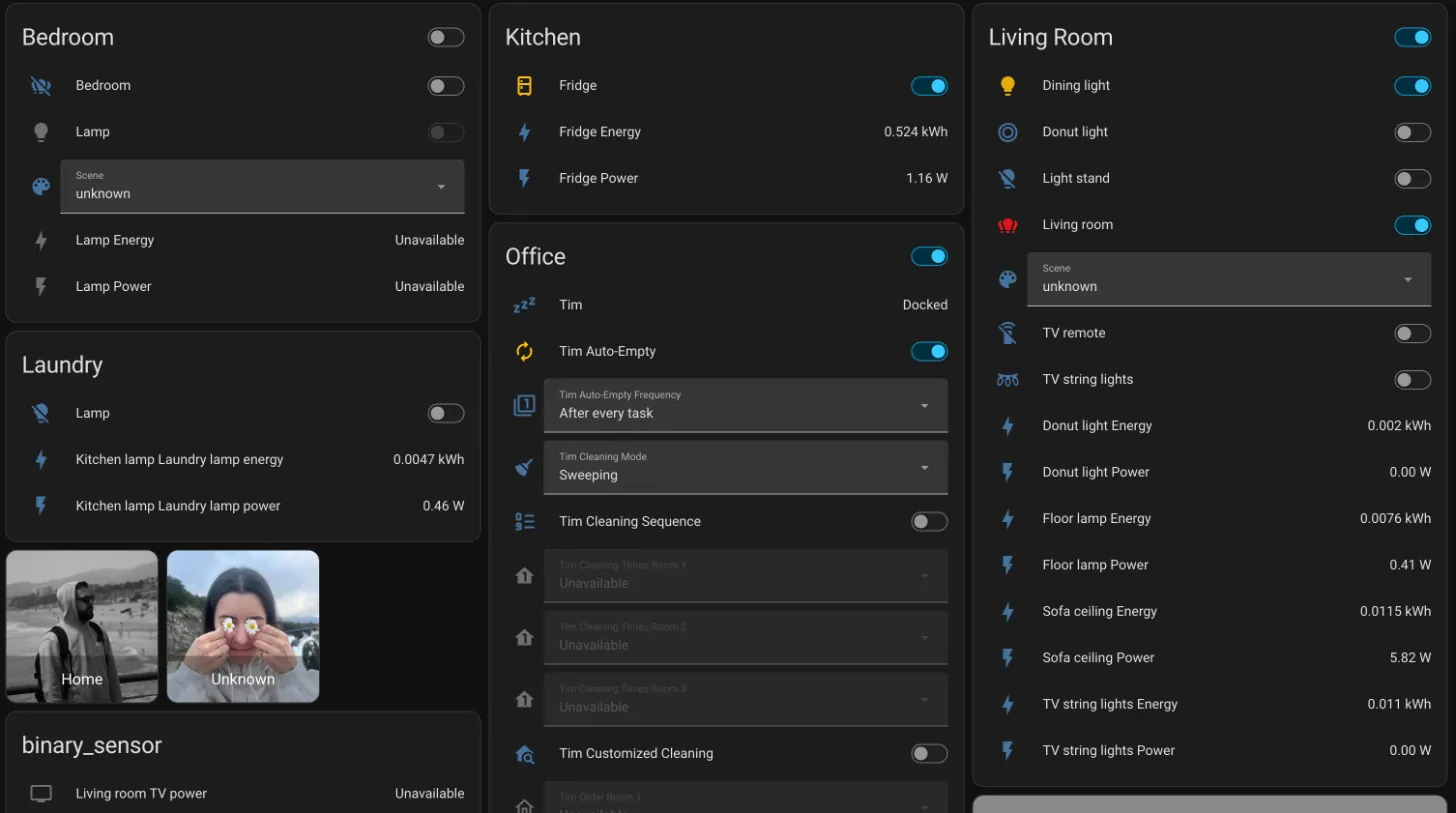
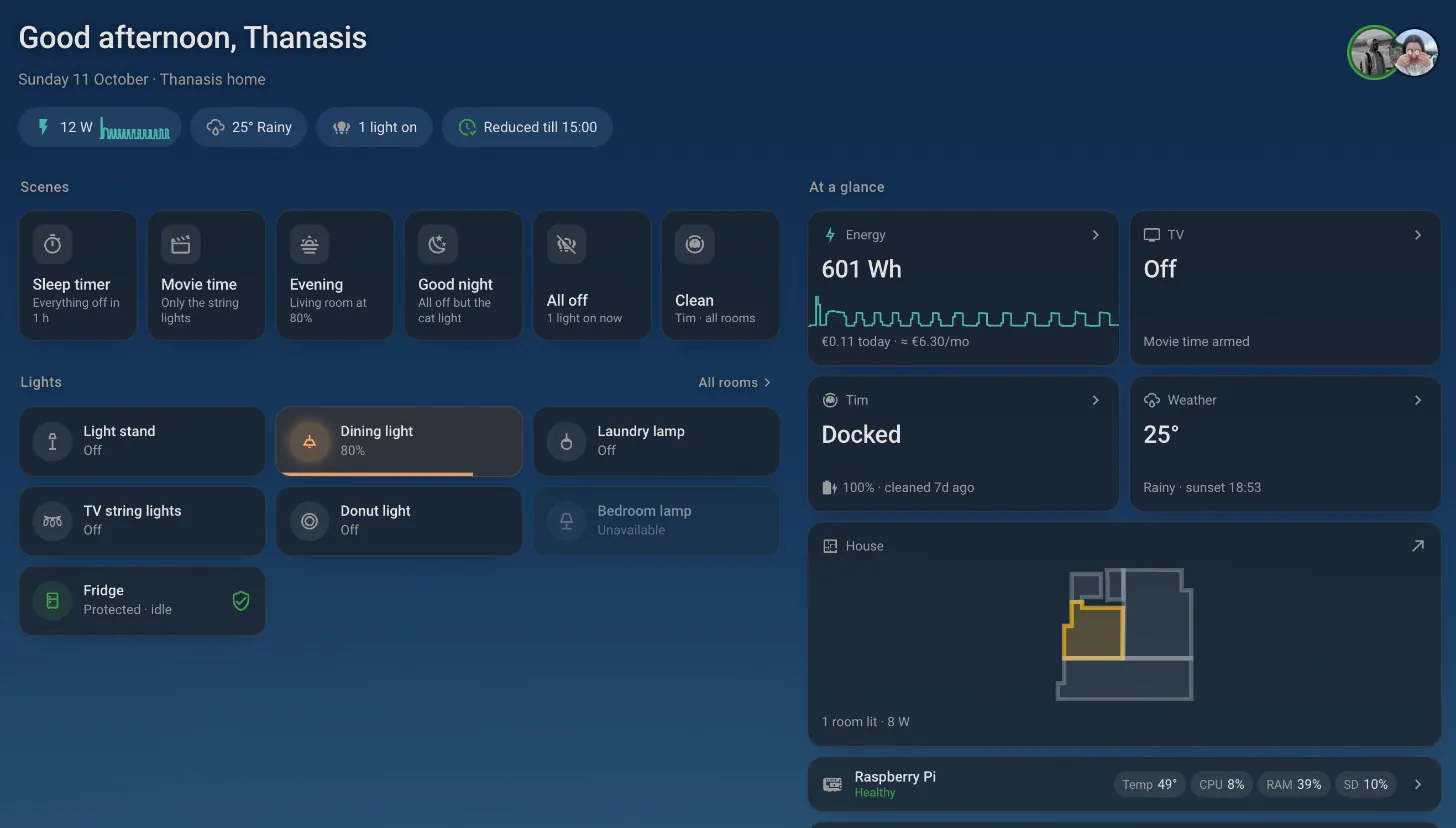
So I sat down with Claude and started working on a couple of custom views. We went from this to this:
First, I installed a few things:
- HACS, the Home Assistant Community Store. It’s where most custom cards and integrations come from.
- Mushroom, a set of clean cards from HACS. I used it to rebuild my old dashboard before replacing it with my own.
- Dreame Vacuum, also from HACS, which gives Home Assistant the vacuum’s live map, rooms and maintenance sensors.
- Powercalc, which estimates the power use of lights that can’t measure it themselves, so every light shows up in the energy numbers.
- The Matter Server, which connects the Meross plugs to Home Assistant directly, without the Meross cloud.
Then I started working on custom components, to make sure everything looks the way I want and is mobile-friendly, interactive and fast.
The overview is built from four kinds of pieces. Tags under the greeting give condensed information. Scenes are quick actions. The lights are one-tap switches. And the At a glance cards each cover one topic. Tapping a tag or a card opens a page with the details. Here’s each part.
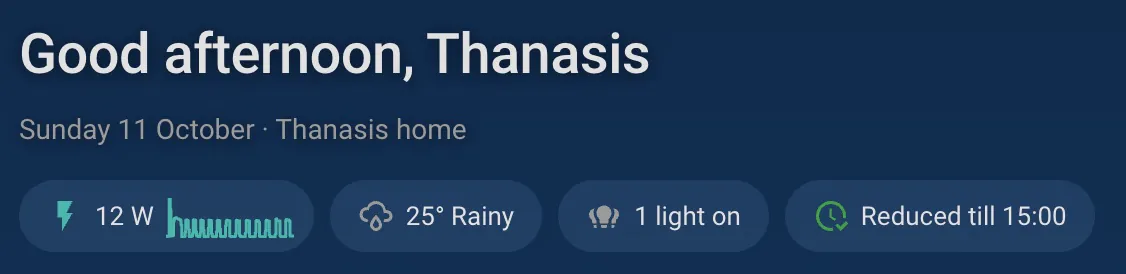
Scenes and lights
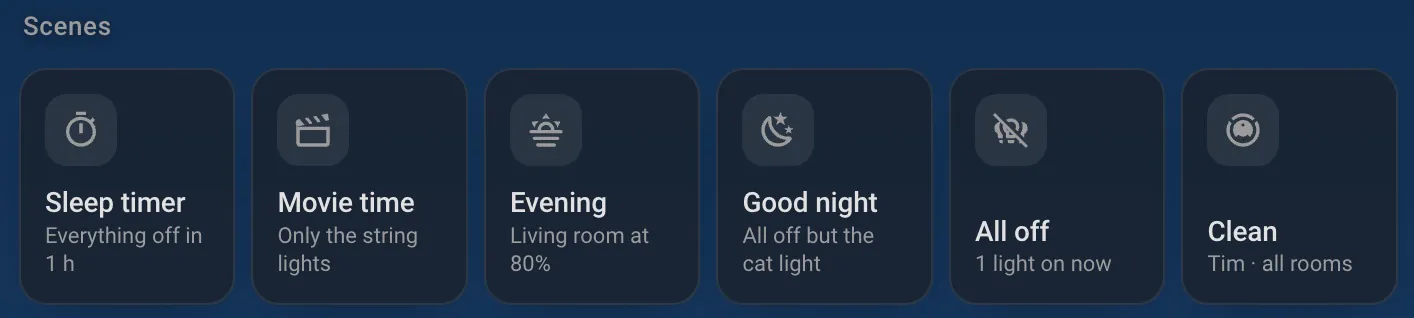
The scenes are the things I actually use, quick actions for the moment I open the dashboard: Sleep timer, Movie time, Evening, Good night, All off, and Clean, which sends the vacuum out. A scene lights up when the house matches it, so I can see at a glance that Good night is already on.
All the lights are quickly accessible too. Tap a light to switch it on or off. The lights tag shows how many are on.
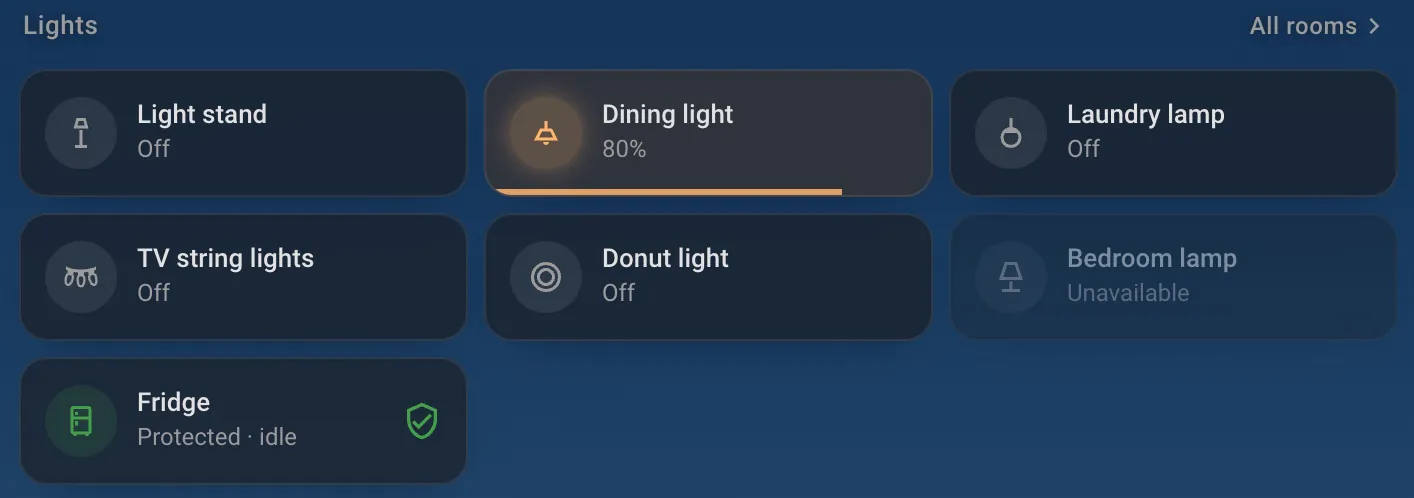
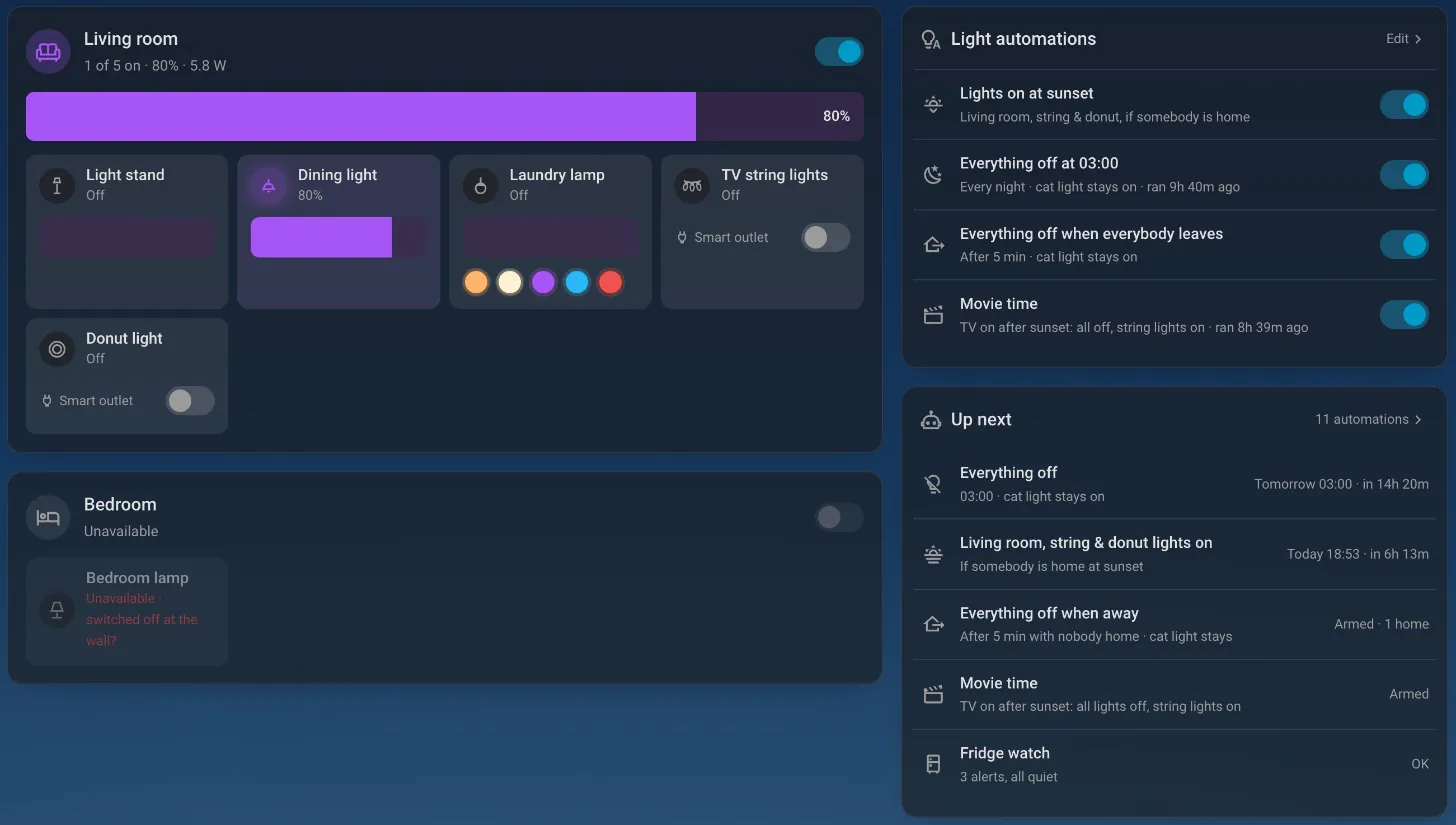
Press and hold a light, or tap All rooms, and the Lights page opens. Each room gets one switch and one slider for all its lights, every light has its own brightness slider or plug switch, and colour bulbs get a row of colour presets. Next to them are the light automations, each with its own on/off switch.
Who’s home
I wanted a way to see who’s currently in the house, with a little information about each person. Their photos sit next to the greeting, with a green ring when they’re home. Tap them and the Family page shows where each person is, whether they’re inside the house or not, their phone’s battery level and the Wi-Fi it’s connected to.

Energy
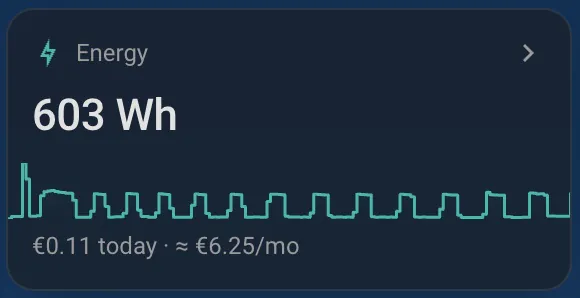
Energy has two tags, one for how many watts the house is using right now with a tiny graph of the last 24 hours, and one for the power rate: whether electricity is at the cheap or the normal rate, and until when. Its card shows what the house has used today and what that has cost.


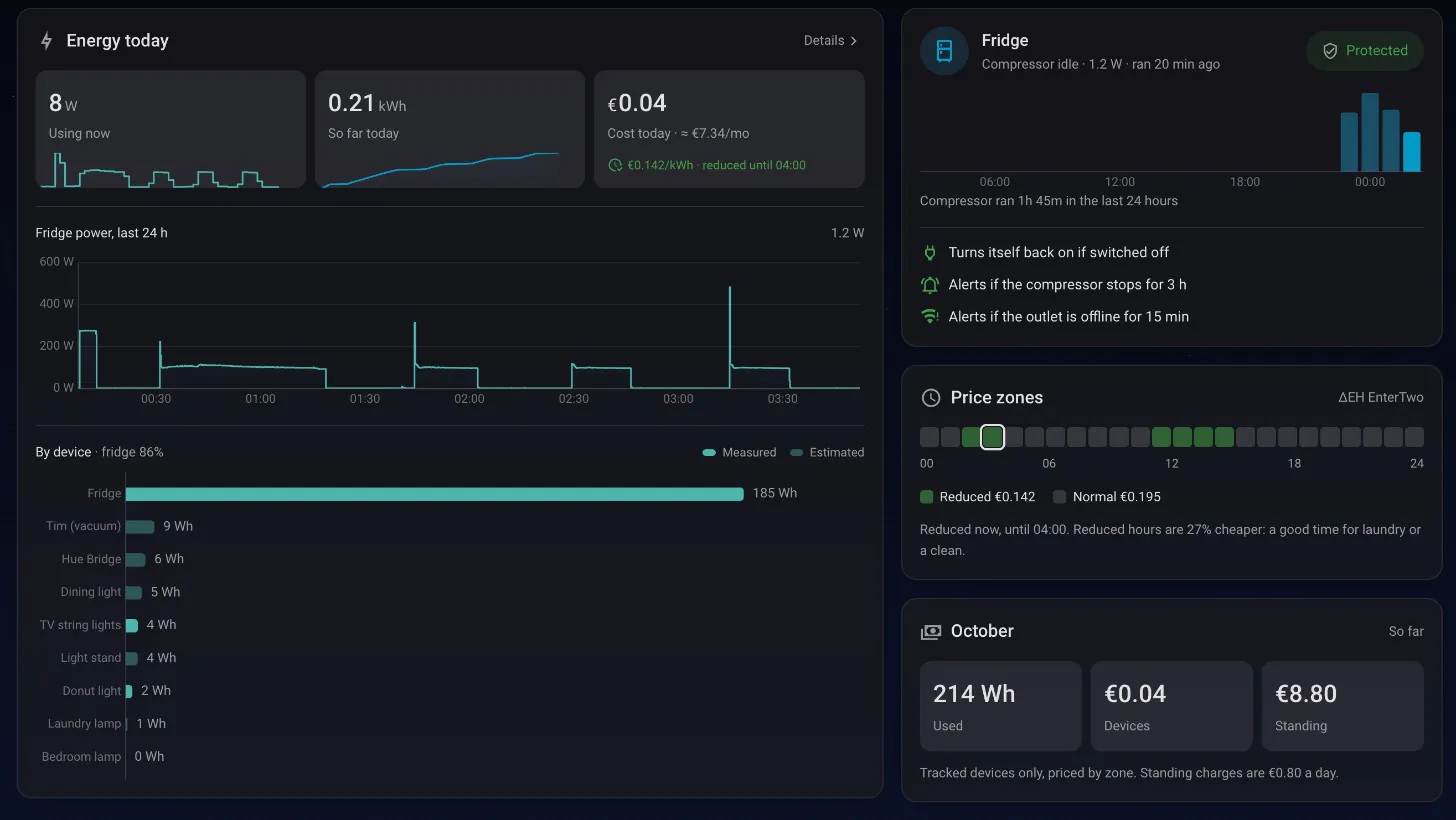
Tapping either opens the energy page: what the house is using now, how much it has cost today at the right rate for each hour, how much each device used, what the fridge’s compressor has been doing, today’s cheap and normal hours, and the month so far.
The vacuum
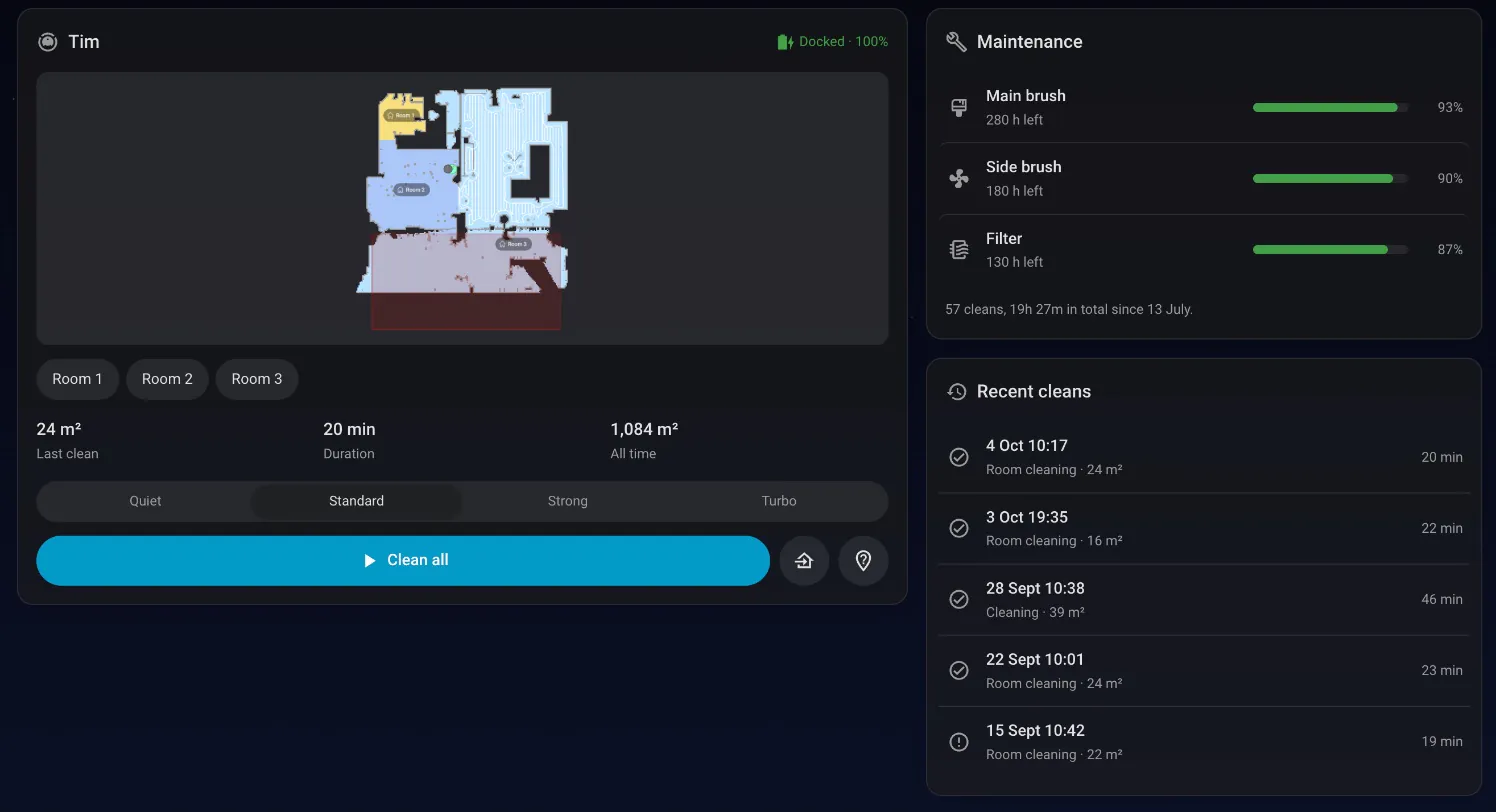
The vacuum card says what Tim is doing, his battery, and when he last cleaned.

His page has his live map, which rooms to clean, the suction level, how worn his brushes and filter are, and his recent cleans.
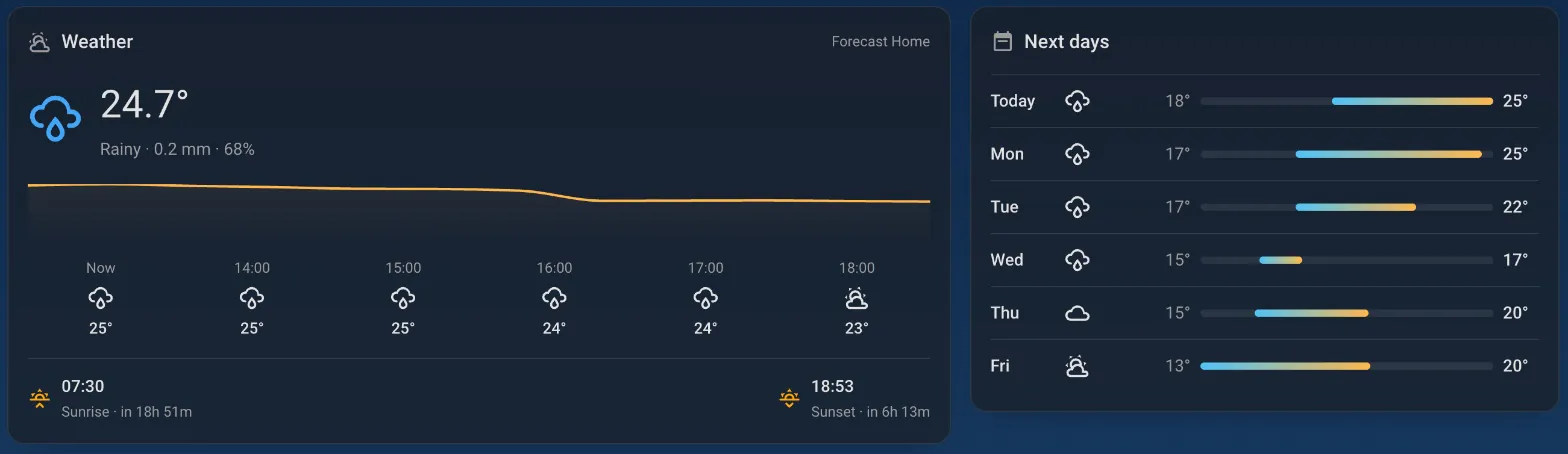
Weather
The weather has both a tag and a card: the temperature, the conditions, and the next sunrise or sunset.


They open the forecast for the next hours and the next few days.
The house
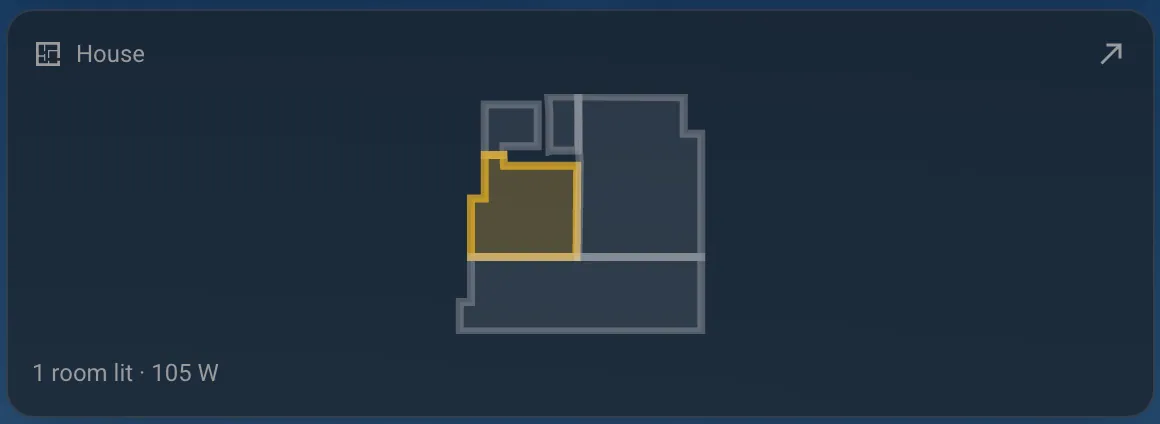
The house card is a custom thing, a small floor plan drawn from the vacuum’s map of the flat. It shows which rooms have a light on right now and how much power the house is using. Tapping it opens the 3D house, which gets its own section below.
The Raspberry Pi
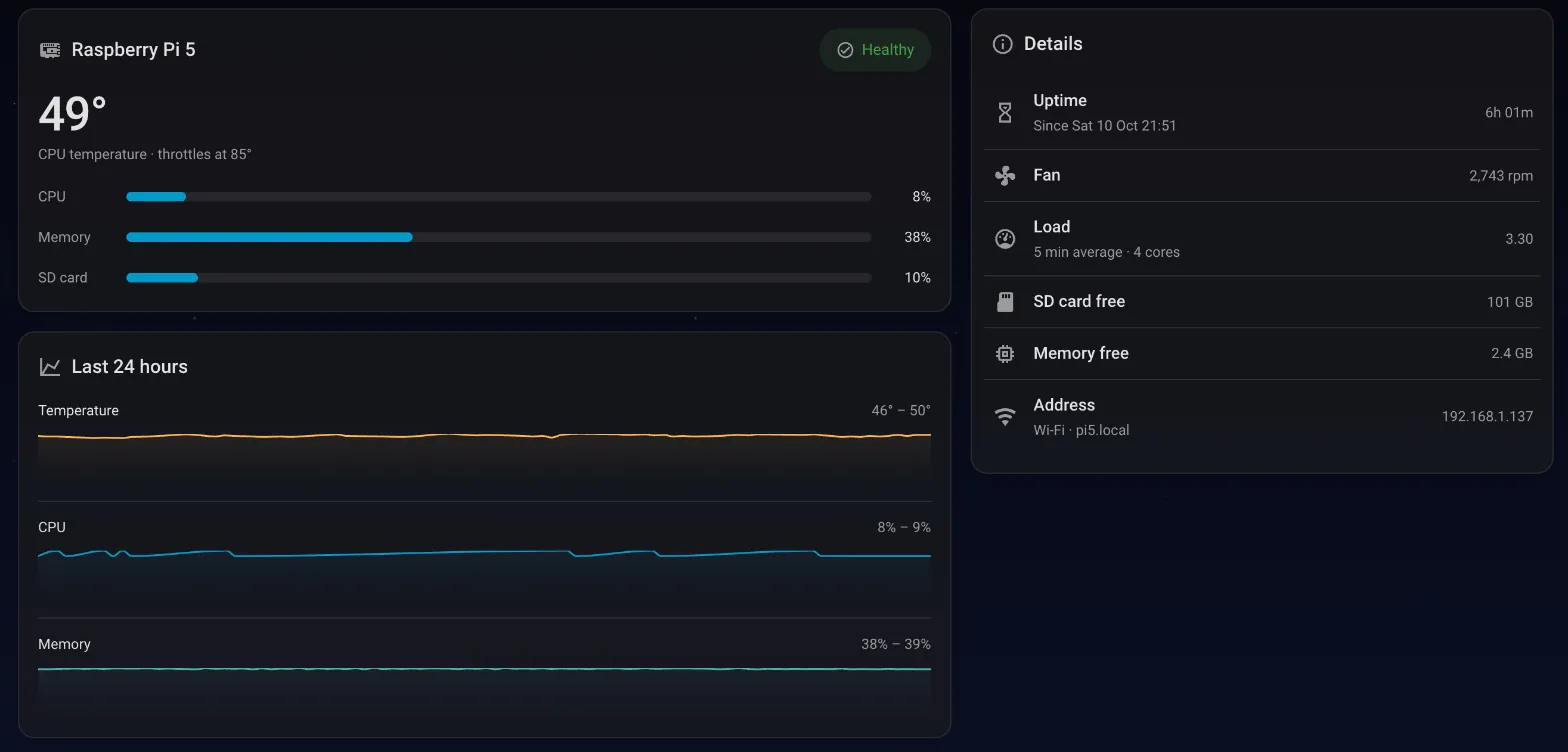
A slim card keeps an eye on the Raspberry Pi’s health: its temperature, CPU, memory and SD card.

Its page has the details and the last 24 hours.
Automations
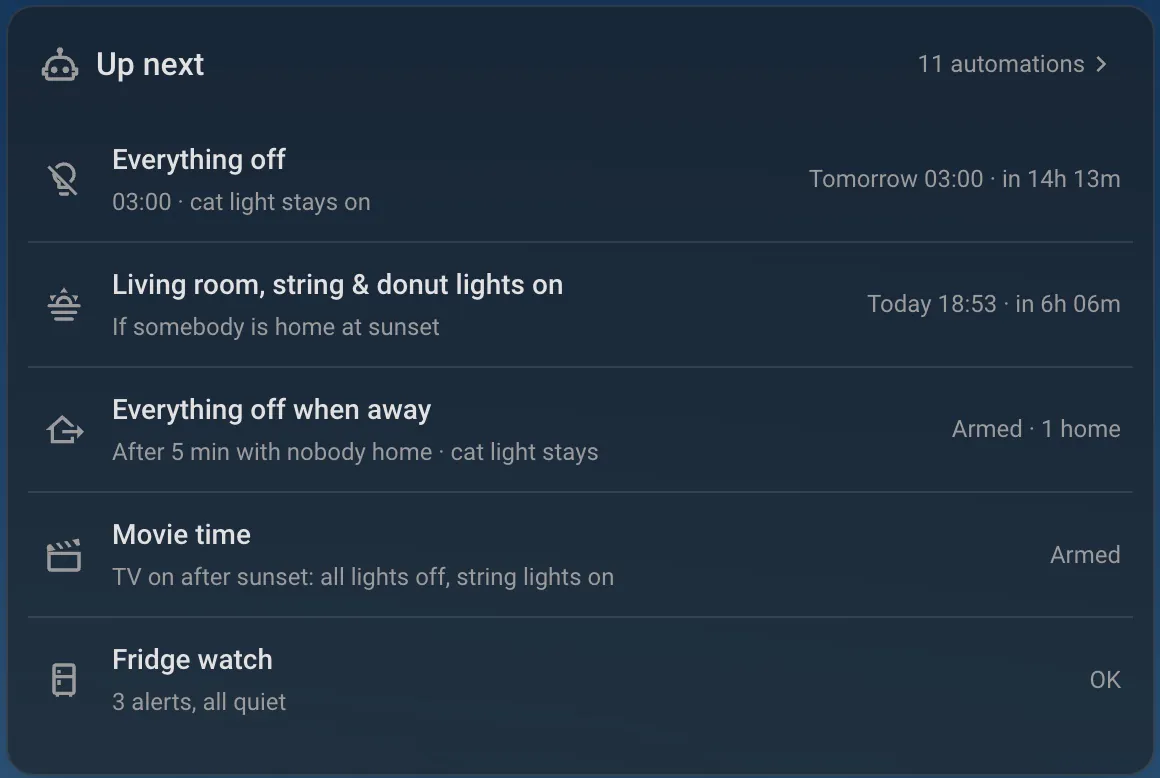
The last card lists the automations: what runs next and when, and whether the ones that wait for something are armed. Each detail page also lists the automations that belong to it, with a switch to turn each one on or off.
Fun bits and bobs
Once everything was connected, a few fun automations came almost for free.
A fridge that tells on itself
Because the fridge sits on a smart plug, I noticed I can see its compressor: when it’s running and when it’s not. So there’s a monitor armed that makes sure the fridge is actually working. If something makes it stop for a long time, three hours without the compressor running, I get a warning that the food inside might be going off. The plug also switches itself back on if anyone turns it off, and I get told if it drops off the network.
The lamp that matches the app
The TV exposes a couple of useful things: you can turn it on and off, and it tells you which app is open right now. Next to the TV there’s the laundry room, which has a translucent glass door, and a colour bulb inside. So the moment you open Netflix, the bulb breathes in with a smooth animation and glows Netflix red through the glass. The same happens for Spotify, YouTube, Disney+, Prime Video and the rest, each in its own brand colour. Switching apps crossfades between them, and the lamp stays dim so it never glares.
Movie time
The moment you turn on the TV after dark, all the lights fade out and only the small string lights behind the TV stay on, to make it feel more like a movie.
The usual ones
And then the typical ones, like the living room lights coming on at sunset when somebody’s home.
The 3D house
One of the things I was really excited about is that I could use the vacuum’s floor plan to create a 3D representation of my house, and place all the devices inside it. I always find it hard to give devices names I’ll remember, so it’s really nice to just see where the thing is that you want to turn on, turn off or change, and click it.
I fiddled around a lot with Claude and ended up with this 3D scene. It looks really cool and futuristic, and it’s its own menu in Home Assistant.
Since every device reports its power use, I also added power lines. Each room has a green line running out of it, around the outside of the house, and it pulses faster the more that room consumes. They all merge into a single point, which shows the total consumption of the house.
And of course, you can spin the whole thing around.
How it’s built
If you want to build something similar, here’s how it fits together.
Home Assistant as the backend
Home Assistant is the backend. It already talks to every device, so the dashboard never does. It reads updates from Home Assistant, and it asks Home Assistant to do things. Home Assistant hands every custom card a hass object with the live state of the house, and a way to call services:
const lamp = hass.states["light.books_table_lamp"]lamp.state                       // "on"lamp.attributes.brightness       // 0–255
hass.callService("light", "toggle", {}, { entity_id: "light.books_table_lamp" })hass.callService("script", "turn_on", {}, { entity_id: "script.movie_time" })
History, for the charts, comes from Home Assistant’s own database over the same connection. I wrapped those calls in TanStack Query, so they’re cached and refreshed every five minutes instead of on every render:
export function useEnergyToday(ids: string[]) { const { hass } = useDashboard() return useQuery({ queryKey: ["energy-today", new Date().toDateString(), ids], refetchInterval: 5 * 60_000, queryFn: () => Promise.all(ids.map((id) => hass.callWS<{ change?: number }>({ type: "recorder/statistic_during_period", statistic_id: id, calendar: { period: "day" }, types: ["change"], }), )), })}A few helpers in Home Assistant
Some things the dashboard needed didn’t exist yet, so I added a few small helpers to Home Assistant’s config to add a bit more functionality.
A sensor for the electricity price, using the day and night rates from my bill:
template: - sensor: - name: Electricity price unit_of_measurement: "€/kWh" state: > {% set h = now().hour %} {% set summer = 4 <= now().month <= 10 %} {% set reduced = (2 <= h < 4 or 11 <= h < 15) if summer else (2 <= h < 5 or 12 <= h < 15) %} {{ 0.1419 if reduced else 0.1949 }}A poll for when the TV is on. The Samsung integration notices the TV turning on 30 to 60 seconds late, but the TV answers on its own local web API right away, so a REST sensor asks it every two seconds:
rest: - resource: http://192.168.1.141:8001/api/v2/ scan_interval: 2 timeout: 2 binary_sensor: - name: Living room TV power device_class: power value_template: "{{ value_json.device.PowerState == 'on' }}"And a couple of scripts for the scenes, plus a timer helper for the sleep timer. This is the one behind Good night and the sleep timer: everything off at once, except a small night light for the cat.
everything_off: alias: Everything off (night light stays on) sequence: - variables: keep: light.night_light to_off: >- {{ states.light | rejectattr("attributes.entity_id", "defined") | map(attribute="entity_id") | reject("eq", keep) | select("is_state", "on") | list }} - action: light.turn_off target: entity_id: "{{ to_off }}" data: transition: 3 - action: light.turn_on target: entity_id: "{{ keep }}"TIP
The rejectattr("attributes.entity_id", "defined") skips light groups. Turning off a Hue room group can switch other bulbs in it back on.
A small React app dressed as a card
The dashboard itself is a small React app dressed as a Home Assistant card. Home Assistant loads custom cards as web components and sets hass on them every time something changes. So the card is a thin wrapper that renders React into it, and React only updates what actually changed:
class TgHomeDashboard extends HTMLElement {  private root?: Root  private config: DashboardConfig = DEFAULT_CONFIG
  setConfig(config: Partial<DashboardConfig>) {    this.config = { ...DEFAULT_CONFIG, ...config }  }
  set hass(hass: Hass) {    this.root ??= createRoot(this.attachShadow({ mode: "open" }))    this.root.render(      <DashboardProvider hass={hass} config={this.config} host={this}>        <Dashboard />      </DashboardProvider>,    )  }}
customElements.define("tg-home-dashboard", TgHomeDashboard)
You can tell the card which section to show, so I include it everywhere I want. Each detail page is a Home Assistant subview, which gives it a back arrow and its own address for free:
views: - title: Home path: home type: panel cards: - type: custom:tg-home-dashboard page: hub - title: Energy path: energy type: panel subview: true back_path: /home-tg/home cards: - type: custom:tg-home-dashboard page: energyVite builds the whole app into one JavaScript file, which Home Assistant loads as a dashboard resource.
The 3D house with CSS 3D transforms
The 3D house is built with CSS 3D transforms, with no 3D library. The floor plan is a flat SVG traced from the vacuum’s map. CSS tilts it back and rotates it, and dragging just changes those two angles:
.stage { perspective: 1900px; }
.plan {  transform-style: preserve-3d;  transform: rotateX(var(--tilt)) rotateZ(var(--rz)) scale3d(var(--zoom), var(--zoom), var(--zoom));}
The walls are a few copies of the outline, each lifted a little higher, which reads as solid walls once the plan is tilted. The device markers undo the plan’s rotation, so they always face you:
.wl { transform: translateZ(calc(var(--i) * 2.4px)); }   /* stacked wall layers */
.mk { transform: rotateZ(calc(-1 * var(--rz))) rotateX(calc(-1 * var(--tilt))); }
The power lines are dashed SVG paths with a moving dash. The more a room uses, the shorter the animation, so the faster it pulses:
const flowSecs = (watts: number) => Math.max(0.22, 4 / (1 + watts / 12))
<path className="flow" d={d} style={{ animationDuration: `${flowSecs(watts)}s` }} />.flow { stroke-dasharray: 10 26; animation: flow-run linear infinite; }@keyframes flow-run { to { stroke-dashoffset: -36; } }Everything in Git
Everything lives in Git, so I can work on it from my laptop and deploy it to the Raspberry Pi. The repo has the dashboard’s source, and a script that copies the Pi’s config (automations, scripts, dashboards) back into it, refusing to copy anything with a password. Deploying is one command, which builds the file and copies it over:
npm run buildscp dist/tg-home-dashboard.js pi5.local:/tmp/ssh pi5.local "sudo install -m 644 /tmp/tg-home-dashboard.js \ /opt/stacks/homeassistant/config/www/tg-home/"What’s next
That’s it. I hope you enjoyed the walkthrough. There’s a lot more I want to add:
- More reliable power numbers. A few more smart plugs, so less of the house is estimated and more is actually measured.
- Plants and air. Automating watering my plants, and monitoring the air quality at home.
- Cameras, vision and AI. A couple of cameras to play with computer vision, so the house can tell, for example, where my cat is.
Keep an eye out for updates.